Creating an AI voiceover for videos has never been easier. Recording a professional voiceover traditionally required a dedicated, sound-treated room, a high-quality condenser microphone, and hours of tedious editing to remove mouth clicks, normalize audio levels, and patch script rewrites.
Advanced neural text-to-speech architectures have streamlined this process. Today, digital creators can draft a script, paste it into an interface, and compile production-ready vocal assets in under two minutes.
However, leveraging automated narration requires careful attention to detail. A weak script will yield a subpar voiceover regardless of the delivery method, and an unoptimized artificial intelligence configuration can instantly alienate an audience.
This technical walkthrough covers the complete pipeline—from engineering your script for optimal algorithmic parsing to mixing the final audio into your video editor.
Step 1: Write Your Script for AI, Not Just for Reading
The most common point of failure when using an AI voice over generator is inserting text written for visual consumption rather than auditory tracking. Reading text allow audiences to scan and re-process at their own speed; listening demands immediate, real-time comprehension.
Use Shorter Sentences
Ensure your spoken lines average under 20 words. Complex, multi-clause sentences break natural cadence and cause neural processors to stumble on emphasis, pacing, and breath placement.
Integrate Contractions Naturally
Phonetic models respond exceptionally well to conversational grammar. Use terms like “You’re” over “You are,” and “It’s” instead of “It is.” This approach instantly softens the synthetic tone, making the performance feel authentic and engaging.
Architect Structural Pauses
Punctuation marks serve as structural performance cues for AI voice tools:
- Commas: Tell the algorithm to execute a brief conversational pause.
- Periods: Signal a clean drop in pitch and a definitive break.
- Ellipses (…) or Custom Pause Tags: Inject longer pauses to smoothly transition between major concepts or chapter breaks.
Optimize Complex Jargon
AI engines process text literally. For technical jargon, brand names, or niche industry acronyms, test the pronunciation early and use your platform’s built-in pronunciation editor or phonetic spelling alternatives to correct any mispronunciations.
Step 2: Choose the Right AI Voice Generator
When using an AI voiceover for videos, professional video voiceovers require clean, artifact-free audio files. Select a platform tailored specifically to your project’s production workflow.
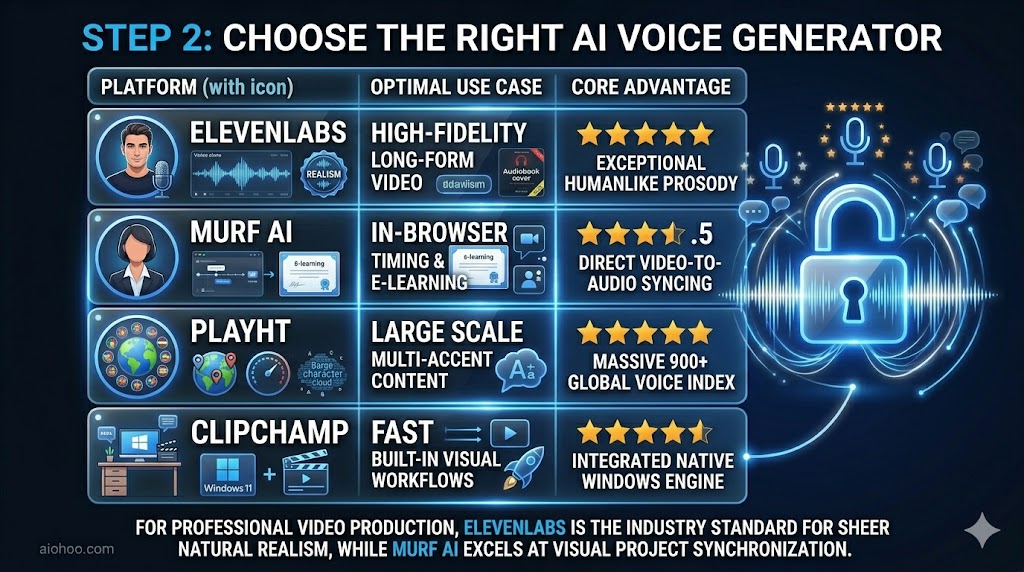
To create the best AI voiceover for videos, For professional video production, ElevenLabs is the industry standard for sheer natural realism, while Murf AI excels at visual project synchronization.
Step 3: Configure Your Voice Settings
Avoid relying entirely on default voice profiles. To create a compelling, lifelike voiceover, adjust your platform’s advanced parameters:
Stability vs. Variability
In ElevenLabs, the stability slider dictates structural consistency. Setting this value too high can result in a flat, monotone delivery. Conversely, keeping it too low introduces random emotional swings. For standard informational video narration, keeping stability between 60% and 70% provides the ideal balance of consistency and natural inflection.
Modulation of Speed and Pacing
Standard speech rates work well for general content, but altering the pacing can change how your video is received. Slowing the rate to 90% enhances comprehension for technical e-learning modules. Speeding it up to 105% builds energy and retention for quick, short-form content.
Style Exaggeration and Emotion
Modern generative platforms include custom emotional modifiers (e.g., professional, narrative, conversational, or excited). Align this setting with your visual brand identity; a corporate explanation requires a calm, professional tone, while a commercial product launch benefits from a vibrant, high-energy profile.
Step 4: Generate and Review
Once your settings are configured, render your script and audit the audio file using studio headphones. Look for these four common issues:
- Proper Noun Glitches: Scan for brand names or industry terms that sound flat or robotic, and adjust them using phonetic spelling.
- Misplaced Emphasis: If the model stresses the wrong word in a sentence (e.g., emphasizing the wrong verb), break up the sentence or alter your punctuation to redistribute the emphasis.
- Run-On Section Breaks: Ensure major transitions do not run together. If the spacing feels tight, insert an empty period line (.) or use a dedicated millisecond pause tag to expand the timeline.
- Long-Form Audio Drift: When working with long scripts, avoid rendering your text all at once. Split scripts into concise, paragraph-sized blocks to keep pitch, energy, and fidelity perfectly consistent from intro to outro.
Step 5: Export in the Right Format
To maintain pristine audio quality throughout post-production, pick the right file container when exporting from your AI tool:
WAV (Uncompressed Audio)
Always choose WAV format for your primary video timeline if it’s supported by your platform. Uncompressed audio at 44.1kHz or 48kHz (16-bit) retains its full dynamic range, allowing you to safely apply equalization and compression inside your video editor without introducing unwanted digital distortion.
High-Bitrate MP3
If storage constraints limit you to MP3 format, ensure the export bitrate is locked to 320kbps. Avoid lower bitrates like 128kbps or 192kbps, as aggressive file compression can cause noticeable metallic artifacts on high-end speakers or earbuds.
Step 6: Mix the Voiceover Into Your Video
A professional voiceover needs to be carefully integrated into your sound mix so it sits cleanly alongside background tracks and sound effects.
   VOICEOVER TARGET RANGE
   [-12dB to -6dB]
   ======================
   ======================

   BACKGROUND MUSIC TARGET RANGE
   [-35dB to -25dB]
   ======
Establish Target Gain Levels
Set your primary narration track to peak between -12 dB and -6 dB on your master audio meter. This provides enough headroom for sound effects and prevents clipping.
Apply Equalization (EQ)
In corporate and tutorial environments, voices often need slight adjustments to sound clear and polished. Apply a high-pass filter at 80Hz to eliminate low-end rumble and background artifacts. Then, add a subtle boost between 3kHz and 5kHz to increase clarity and help the dialogue cut through the mix.
Duck Your Background Music
Ensure background music is pushed 15 dB to 20 dB below your narration track. Keeping your music levels too high introduces listening fatigue and makes your content harder to understand.
Common Mistakes to Avoid
- Accepting the First Render: Treat your first generation as an initial draft. Re-rolling lines and tweaking settings is standard practice for getting a humanlike delivery.
- Skipping Pronunciation Tests: Avoid rendering large scripts before testing specialized terms. Run your trickiest proper nouns through the generator first to fix spelling errors early.
- Mixing AI and Human Voices Casual: Blending synthetic speech with live human recordings in a single video can feel disjointed to audiences unless both tracks are explicitly styled to match.
- Forgetting Mobile Speaker Checks: Always review your final mix on both studio headphones and standard phone speakers. Minor audio issues that are hidden by laptop monitors can become very obvious on smaller mobile devices.
When to Choose Human Narrators Over AI
AI voiceovers are efficient, cost-effective, and highly reliable for educational explainers, software tutorials, and product demonstrations. However, certain projects still demand a live human recording:
- Personal Branding Content: If your business model relies heavily on your personal identity, replacing your voice with an AI profile can erode trust with your community.
- High-Stakes Emotional Storytelling: Charitable fundraising campaigns, personal memoirs, and high-impact sales pitches require a level of empathy and nuance that only a live human performer can deliver.
- Spontaneous Broadcast Media: Reactive content, raw reactions, live commentary, and unscripted talk shows naturally require real-time human interaction.